If a reward from an Exclusive Offer or Featured Offer hasn’t been credited, open a support ticket. It sends our Support Team the rewards you’re missing and your proof in one go, so they can check them.
Before you open a ticket, check the offer’s completion time limit. Some offers must be completed within a set timeframe (for example, “Reach Level 15 within 7 days of install”). If you finished after the deadline, the offer will not credit and a support ticket cannot override this — check the offer description (More Info) for any time limit.
How to create a support ticket
You can create a support ticket 48 hours after beginning an Exclusive Offer or Featured Offer. Here are the steps:
- Go to your profile and select “Started Offers”
- Find the offer and open its “Support” option
- Tick the rewards you reached but didn’t get, then select “Continue”
- Add the date you completed them and at least one screenshot or video
- Send your ticket with the “Open tickets” button
If you see a “Reward missing?” card on the offer’s page, you can start there too. It opens the same form.
Note: Most tickets are answered within 2 days. You can check the status of your support ticket at any time in the "Your Offer Tickets" section of your profile.
On mobile, select the logo in the top-left corner to open your profile. Under “Started Offers”, select “View all” and pick the offer you’re missing a reward from. Scroll down to “Support” and press the link icon on the right.
On desktop, select the logo in the top-right corner to open your profile. Under “Started Offers”, switch to List View. Each offer has a link icon in the “Support” column on the far right, so select the one for your offer.
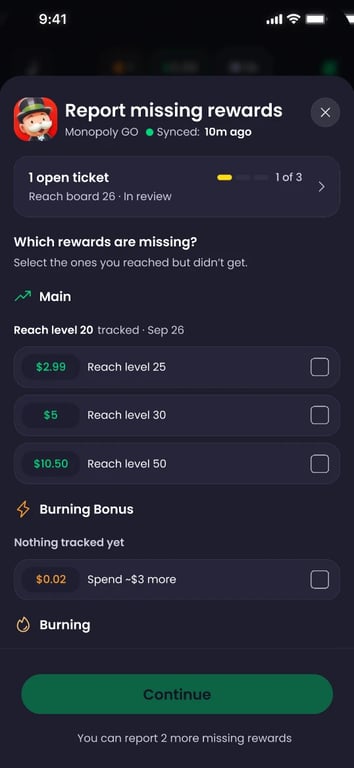
Select the rewards that are missing
The form opens on “Which rewards are missing?”, with the offer’s rewards in the same groups you see on the offer page.
For rewards that build on each other, like levels or boards, each group starts with the last reward we tracked for you, such as “Reach level 20 tracked” (or “Nothing tracked yet”). Under it are up to three rewards that come next.
Other groups show up to three rewards you haven’t earned yet.
Tick each reward you reached but didn’t get, then select “Continue”. The bar at the bottom shows how many you’ve picked and what they’re worth in total.
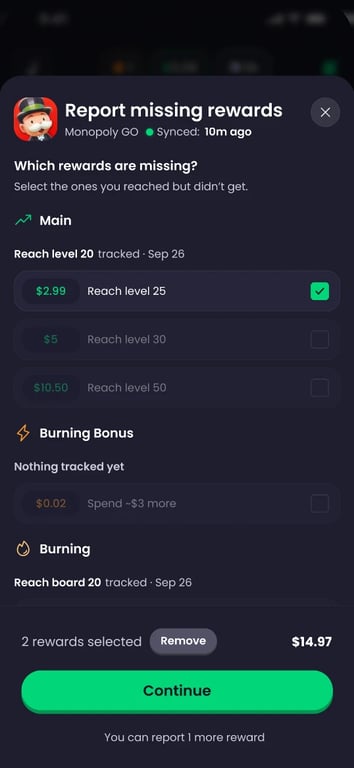 Picking missing rewards in the form · October, 2026
Add the completion date and your proof
Next, the form asks for a few details. You can still remove a reward here, or select “Add reward” to go back and pick another one.
Enter the offer completion date, which is the day you reached the reward (future dates can’t be picked). Then upload at least one screenshot or video. PNG, JPG, MP4 and MOV files all work, up to 150 MB per ticket.
The “Anything else?” box is optional. Use it for a short note of up to 500 characters if there’s something we should know.
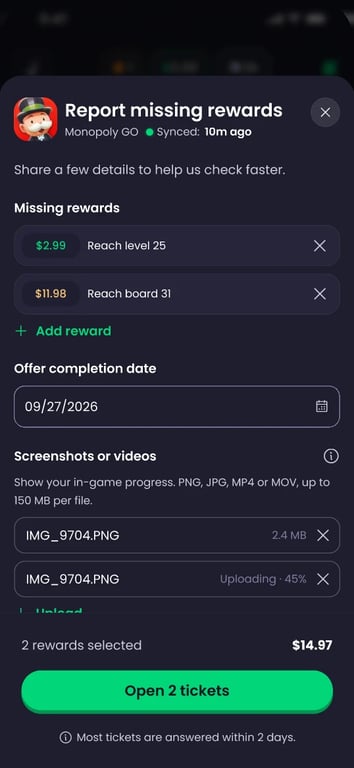 Completion date and proof upload · October, 2026
We decline tickets when we don’t have enough evidence, so the proof is worth getting right. Select the info icon next to “Screenshots or videos” to see what it should show:
- Your Freecash ID, which you’ll find on your Freecash profile
- Your progress, like the level or board you reached
- Your in-game username, from your profile in the game
- Your purchase receipt, if the reward needed a purchase
A screen recording works best. Start on your Freecash profile, open the game from the offer, and then show your progress.
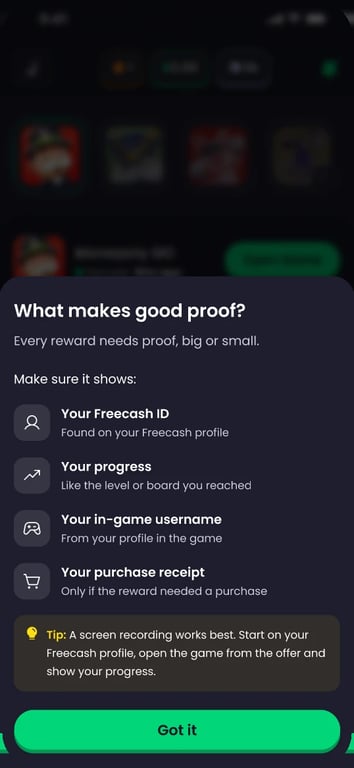 What makes good proof? checklist · October, 2026
Send your tickets
Once you’ve added a date and at least one file has finished uploading, select “Open tickets” at the bottom. Each reward you picked becomes its own ticket, so the button shows the count, like “Open 2 tickets”.
You’ll then see a confirmation listing your open tickets, each marked “In review”.
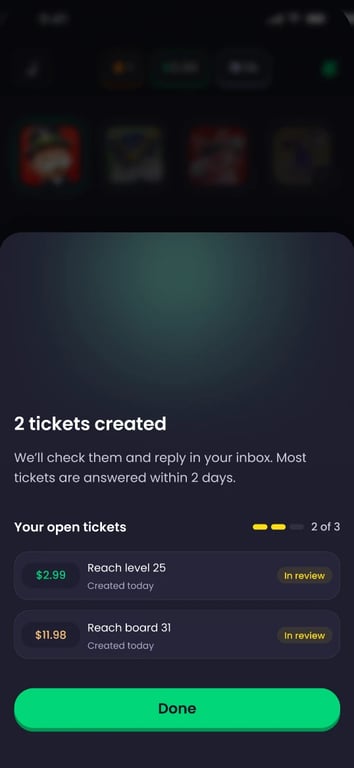 Confirmation with 2 tickets created · October, 2026
How many tickets can I open at once?
You can have up to 3 open tickets per offer. If you already have some, the top of the form shows how many (for example, “1 open ticket” and “1 of 3”). Select that row to see them.
Once all 3 are open, the other rewards can’t be selected. You can report more as soon as one of your tickets is answered.
 Open ticket counter showing 1 of 3 · October, 2026
Why isn’t my reward in the list?
The form only lists rewards you can report right now. A reward won’t appear if:
- It’s already been credited to your balance
- It’s waiting for you to claim it, so claim it on the offer page instead
- Its time limit ended more than 30 days ago
- It isn’t one of the next three rewards in its group
A reward you’ve already opened a ticket for stays in the list with an “In review” tag, but you can’t pick it again. If you’re sure you reached a reward that isn’t listed, message us on live chat.
How to check the status of a support ticket?
On your profile, navigate to the 'Offer Tickets' tab to find the status of any support tickets. In the below example, the support ticket is still pending:
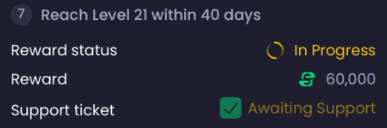 November, 2024
A support ticket will either show, 'Awaiting Support', 'Declined', or 'Accepted'.
Declined
If your request for support has been declined, the reward status will appear as 'Completed' and the support ticket will show 'Declined by support'.
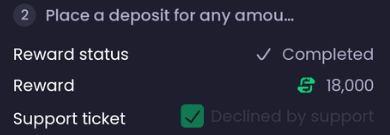 November, 2024
When we decline tickets, it's because we don't have enough evidence to accept your ticket.
Accepted
In cases where your support ticket has been accepted, the reward status will appear as 'Completed' and the Support ticket will show 'Accepted by support'.
 November, 2024
You should see the reward amount added to your funds.
Can I create a support ticket for a Partner Offer?
No, you cannot create a support ticket for a Partner Offer. Queries and concerns relating to Partner Offers are handled by the original provider.
You can check who the provider of an offer is in the description:
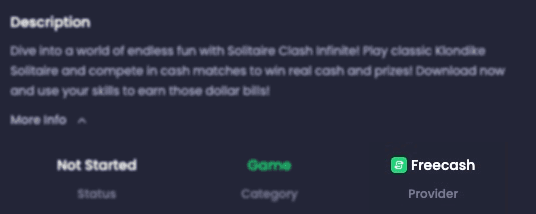 December, 2024
If you are having issues with Partner Offers, you will need this support article.
Still need help? Use live chat
If a ticket can’t help with your problem, you can still reach us on live chat:
- To open live chat on desktop, simply press the green button in the bottom-right corner.
- To open live chat on mobile, open the sidebar and select “Chat”, then press the headset button in the top-right corner.